



I have been moving stores to Shopify for 9+ years, and a lot of them come from WordPress and WooCommerce. The reason is almost always the same: every small change needs a developer, the plugins keep piling up, and the store gets slower every year.
This is the process we use to convert a WooCommerce store to Shopify. It is based on our own projects, like Futureface, a Canadian skin nutrition brand we moved from WooCommerce to Shopify in 3 weeks. They got orders on the first day after the switch.
Quick overview
- Who it's for: WooCommerce store owners who want a store they can run without a developer
- What moves: products, variants, categories, customers, orders, coupons, reviews, blog posts and pages
- What doesn't move: your WordPress theme, your plugins and your customers' passwords
- How long: about 3 weeks for a small store like Futureface (80 hours of design and code), around 6 weeks for a bigger custom store
- The step that protects your Google rankings: a redirect from every old link to its new Shopify address
What moves from WooCommerce to Shopify (and what doesn't)
Most of your store data can be moved. The design can't. Here is what happens to each part:
| On WooCommerce | On Shopify | Does it move? |
|---|---|---|
| Products and variations | Products and variants | Yes, with an app or a CSV file |
| Product categories | Collections | Yes |
| Product attributes | Variant options (up to 3 per product) | Yes, but check every product |
| Customers | Customers | Yes, without passwords |
| Orders | Order history | Yes, with a migration app |
| Coupons | Discount codes | Yes, with some apps, or you recreate them |
| Product reviews | A review app (we used Judge.me) | Yes, by export and import |
| Blog posts and pages | Blog posts and pages | Yes, but check the formatting |
| Theme and page builder layouts | A Shopify theme | No, the design is rebuilt |
| Plugins | Shopify apps or built-in features | No, they are replaced |
| Customer passwords | None | No, customers log in again with their email |
The theme is the part people don't expect. A WooCommerce theme is built for WordPress, so nothing from the design moves over. Your store gets rebuilt in a Shopify theme, which is also the best moment to fix the pages that weren't selling.
How to convert WooCommerce to Shopify, step by step
These are the 11 steps we follow on every migration. Your WooCommerce store stays live the whole time, so your customers don't notice anything until the day you switch the domain.
Step 1: Write down everything your WooCommerce store has
Before you export anything, make a list of what you have: products, pages, blog posts, plugins and every link that gets traffic from Google.
For Futureface we put all 20 old links in one Google Sheet, with the new Shopify address next to each one. That sheet became the redirect list later. List your plugins too, with what each one does and what will replace it on Shopify.
Step 2: Back up WooCommerce and export your data
- Take a full backup of your site from your hosting first
- Export your products as a CSV: in WordPress go to Products, then click Export
- Export your posts and pages: in WordPress go to Tools, then Export
- Keep your customer and order data where your migration app can reach it (most apps connect to your WooCommerce store directly)
Step 3: Set up Shopify and choose your theme
Create your Shopify store, pick a plan and choose a theme. We build on a fast Shopify theme with its own sections, not with a page builder like PageFly or Replo. Page builders make the store slower and harder to change, and that is the problem most people are leaving WooCommerce to fix. If speed matters to you, read how we get stores to 90+ on Google PageSpeed.
Step 4: Move your products (pick the right method)
There are 4 ways to transfer your WooCommerce products to Shopify. The right one depends on how many products you have and what else needs to move.
| Method | Good for | What to know |
|---|---|---|
| Shopify CSV import (free) | Small stores with simple products | The WooCommerce CSV has different columns, so you have to convert it to Shopify's template first. Variants and images take the most time. |
| WooCommerce importer apps (like AppsByB or Ablestar) | Most stores | They connect to your WooCommerce store and pull products, customers and orders. AppsByB has a free plan for up to 100 products. Ablestar only imports customers who placed an order. |
| Matrixify | Big catalogs and custom fields | Paid plans. It can also create redirects from your old product and category links. |
| Cart2Cart or LitExtension | Full moves with orders and customers | Priced by how much data you move. Run their free demo first and check the result. |
Futureface had a small catalog: a gummy, a moisturizer, CreatineComplete and a bundle. For a store like that, the products are the easy part. Most of the 80 hours went into the design and code of the pages.
Whatever method you use, check every product after the import:
- Variants, prices and compare-at prices
- SKUs and inventory
- The right image on each variant
- Weights, so your shipping rates work
- The SEO title, description and product URL
Step 5: Move customers, orders and reviews
Customers: import them with their email consent, and only mark people as subscribed if they really subscribed on WooCommerce. When we moved Gold Star Fragrances to Shopify, we imported their past customers in batches, checked the list and removed bounced emails, so their emails kept landing in the inbox.
Orders: bring your order history over, so returning customers see their past orders and you keep your sales reports.
Reviews: don't leave them behind. Futureface's reviews moved to Judge.me, so the product pages had their social proof from day one.
Step 6: Move your blog posts and pages
Your WordPress posts can go to the Shopify blog, but the links change and the formatting often breaks. Check the headings, images and links inside every post. Then rebuild your key pages: about us, contact, returns, privacy and anything that gets traffic. For Futureface we rebuilt their astaxanthin science pages (sun damage, skin texture, collagen and oxidative stress) as proper Shopify pages.
Step 7: Replace your plugins with Shopify apps
Every plugin needs a replacement or a reason to go. A lot of them are built into Shopify, so you end up with fewer moving parts.
| WooCommerce plugin | On Shopify |
|---|---|
| WooCommerce Subscriptions | A subscription app like Appstle or Recharge |
| Yoast or Rank Math SEO | Shopify's SEO fields on every page, plus URL redirects |
| Product review plugin | A review app like Judge.me |
| Currency switcher | Shopify Markets, built in |
| Email marketing plugin | Klaviyo or Omnisend, connected directly |
| Page builder (like Elementor) | Your theme's sections |
| Contact form plugin | Shopify's contact form, built in |
Compare the fees before you pick an app. Futureface sells subscriptions, so we compared the two big subscription apps. Recharge's Starter plan was $149 a month plus 1.50% and 20 cents per transaction. Appstle had a free plan for smaller subscription revenue and paid plans from around $10 a month with no transaction fees, so we recommended Appstle. We connected their existing Klaviyo account to the new store and added currency conversion for shoppers outside Canada. If you are also thinking about your email platform, here is why we move most stores from Klaviyo to Omnisend.
Step 8: Set up redirects (this keeps your Google rankings)
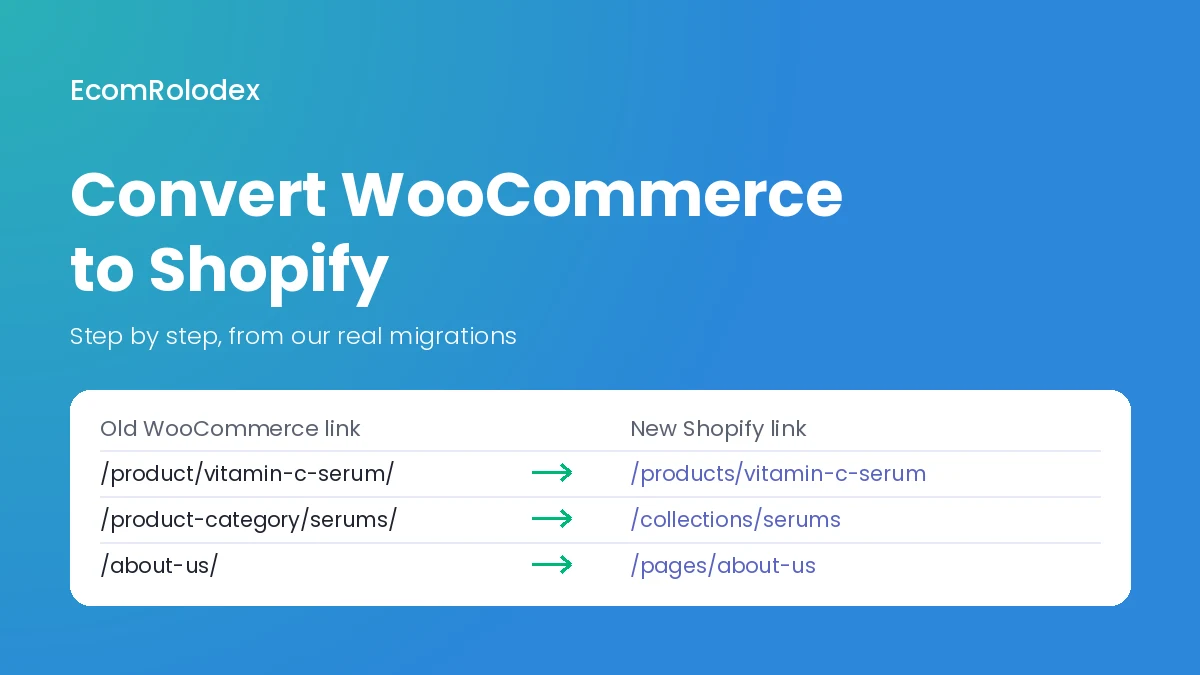
This is the step that decides if you keep your traffic. WooCommerce and Shopify use different link formats, so every old link needs to point to its new address:
| Page | WooCommerce link | Shopify link |
|---|---|---|
| Product | /product/vitamin-c-serum/ | /products/vitamin-c-serum |
| Category | /product-category/serums/ | /collections/serums |
| Page | /about-us/ | /pages/about-us |
| Blog post | /how-to-use-vitamin-c/ | /blogs/news/how-to-use-vitamin-c |
| Shop page | /shop/ | /collections/all |
In your Shopify admin, search for "URL redirects". You can add them one by one, or import them all from a CSV file with a "Redirect from" and a "Redirect to" column. Shopify creates redirects by itself when you change a link inside Shopify, but it doesn't know your old WooCommerce links. Those you have to add.
On Futureface all 20 old links went into Shopify as redirects, so the rankings and the backlinks carried over. Without redirects, every old link on Google and on other websites would end on an error page.
Step 9: Test everything before you switch
- Place test orders with your real payment methods
- Check the order confirmation and shipping emails
- Check shipping rates and taxes for your main countries
- Try your discount codes
- Go through the store on your phone, since most of your sales come from mobile
- Check the speed of the homepage and your best product page
Step 10: Switch your domain
Connect your domain in Shopify, then update the DNS where your domain is registered. Shopify's instructions ask for an A record pointing to 23.227.38.65 and a "www" CNAME pointing to shops.myshopify.com. Follow Shopify's current instructions in your admin, because these values can change. The switch can take up to 48 hours. Keep your WordPress backup and don't cancel your old hosting for a few weeks.
Right before the switch, import the orders and customers that came in on WooCommerce since your first export, so nothing gets lost.
Step 11: After launch, watch Google and fix any 404s
Submit your new sitemap (yourdomain.com/sitemap.xml) in Google Search Console. For the first month, check the Pages report every week and add a redirect for any old link you missed. On Futureface we gave 90 days of support after launch and recorded video instructions, so their team knows how to run the new store.
How long it takes and what it costs
Here are two real examples from our projects:
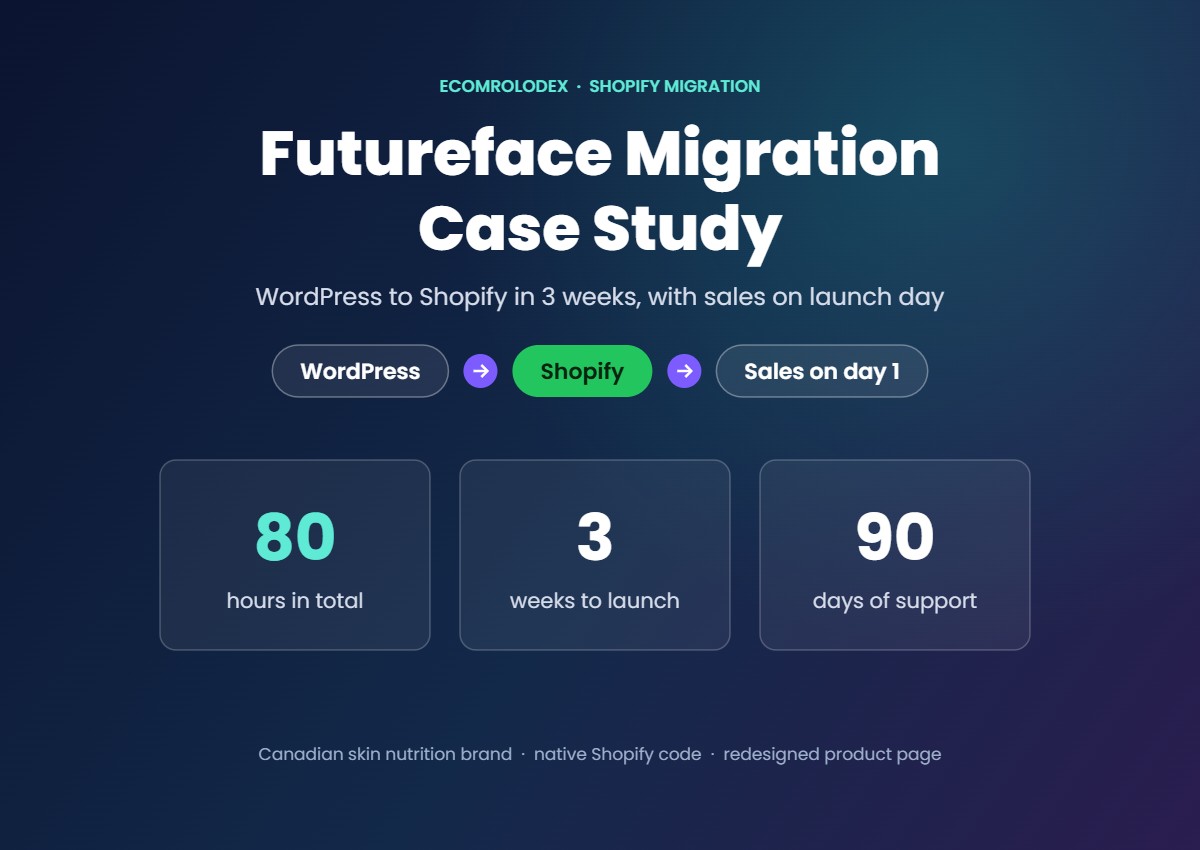
- Futureface (WooCommerce to Shopify): 80 hours of design and code over 3 weeks, split into 3 milestones: the homepage and menus, then the product pages, then the remaining pages and optimizations. Orders came in on the first day after the domain switch.
- Gold Star Fragrances (SunShop to Shopify): a bigger custom store that took about 6 weeks and 200 hours, with a Figma redesign, data migration, redirects, emails and ads. They went from around 10 orders a day to 30 to 50.
The cost depends on how many products, pages and links you have, and how much of the design you want to change. The apps go from free for small stores to paid plans for bigger ones. Our store builds start from $890, or from $1,490 with a custom design, and we quote a migration after we look at your store.
Mistakes we see when stores move from WooCommerce to Shopify
- No redirects. The new store looks great, and the Google traffic drops because every old link ends on an error page.
- Rebuilding with a page builder. You leave a slow WooCommerce store and build a slow Shopify store.
- Importing everyone as an email subscriber. People who never subscribed mark you as spam, and your emails stop reaching the inbox.
- Leaving the reviews behind. A product page with zero reviews sells less than the old one did.
- Copying the old design 1:1. The migration is the cheapest moment to fix your best seller's page. On Futureface we redesigned the 365 CreatineComplete page in Figma before building it.
- Switching the domain before testing. One broken payment or shipping rate on launch day costs more than one extra day of testing.
- Picking apps without comparing fees. Like Recharge and Appstle above, the difference can be over $100 a month.
Should you do it yourself or hire someone?
You can do it yourself if you have a small store with simple products, no subscriptions, a few pages and not much traffic from Google. Use an importer app, a Shopify theme and a redirect CSV, and follow the steps above.
Moving from Wix instead? Follow our Wix to Shopify migration guide.
It makes sense to get help if you have subscriptions, a lot of Google traffic, many variants, years of orders and customers, or you want a better design than you had. That is the work we do. We have done 1,300+ Shopify projects since 2017, including migrations from WordPress, WooCommerce and SunShop. You can see how we handle it on our WordPress to Shopify migration page.
Frequently asked questions
Can you convert WooCommerce to Shopify for free?
Yes, for a small store. You can use Shopify's CSV import, or the free plan of an importer app like AppsByB, which covers up to 100 products and up to 50 orders, customers and coupons. You still pay for your Shopify plan, and for any paid theme or apps you choose.
Do customer passwords transfer from WooCommerce to Shopify?
No. Passwords are encrypted, so no app can move them. Your customers get an invite to activate their account, or they log in with a code sent to their email, depending on the type of customer accounts your Shopify store uses.
Will I lose my Google rankings when I move to Shopify?
Not if you redirect every old link to its new Shopify address and keep your page titles and descriptions. Rankings can move a little for a few weeks while Google picks up the new store.
How long does it take to transfer WooCommerce to Shopify?
A small store takes about 3 weeks. Futureface took 80 hours of design and code over 3 weeks. A bigger custom store takes longer: our SunShop to Shopify move for Gold Star Fragrances took about 6 weeks and 200 hours.
Can I keep selling on WooCommerce during the move?
Yes. We build the Shopify store in the background while your WooCommerce store keeps selling. You only switch the domain at the end, after a last import of the newest orders and customers.
Can I move my WooCommerce subscriptions to Shopify?
Yes, with a Shopify subscription app like Appstle or Recharge. Plan it early. Whether your subscribers' payment details can move depends on your payment provider, so ask the subscription app's migration team before you switch.
Moving from WooCommerce to Shopify?
Send me your store link. I'll look at your products, pages and plugins and tell you what moves, what needs a rebuild and how long it takes.