



Gift cards are one of the easiest things to add to a Shopify store, and one of the most misunderstood. I have been building and fixing Shopify stores for 9+ years (1,300+ projects since 2017), and the gift card questions we get are always the same: how do I turn them on, why is the code not working, how does a customer check the balance, and is a gift card really the best way to bring people back?
This guide answers all four. It covers how gift cards in Shopify work, how to set them up, the settings that cause most problems, how to check a balance, how to fix a gift card that won't work, and when cashback store credit does a better job than a gift card.
Quick overview
- Which plans: gift cards are available on all Shopify plans, with no app needed
- Two kinds: gift card products that customers buy, and gift cards you issue for free from your admin
- Limits: up to $10,000 USD for a gift card product denomination, up to $2,000 USD for a card you issue from the admin
- Expiry: Shopify gift cards don't expire unless you turn expiry on (check your local law first)
- Fees: stores created on or after May 12, 2025 pay the third-party transaction fee on the part of an order paid with a gift card or store credit, unless they're on Plus and use only Shopify Payments
- Where they work: only in the store that issued them, on channels that use Shopify checkout (online store, Shop app, Buy Button, POS and a few others)
How gift cards in Shopify work
A Shopify gift card is a balance attached to a unique code. When a customer pays with the code at checkout, Shopify takes the amount from the balance. Whatever is left stays on the card for the next order, until it reaches zero.
There are two ways a gift card gets created:
| Gift card product | Issued gift card | |
|---|---|---|
| Who creates it | A customer buys it on your store | You create it in your admin |
| Who pays | The buyer, upfront | Nobody, it's free for the person who gets it |
| Value | Preset amounts (denominations), up to $10,000 USD | Any amount you type, up to $2,000 USD |
| Typical use | Holiday gifts, birthdays, corporate gifts | Apologies, giveaways, influencer gifts, bonus cards |
Customers can't type their own amount on a gift card product. They pick one of the denominations you set. If someone wants a custom amount, the usual workaround is to send them an invoice and then issue a gift card for that amount after they pay.
How to enable gift cards and sell them on Shopify
There is no app to install. Everything happens in your Shopify admin.
Step 1: Open Products > Gift cards
The first time, Shopify asks you to accept its gift card terms. After that, the Gift cards page shows every card your store has created or sold.
Step 2: Add a gift card product
Click to add a gift card product. Give it a clear title (like "Gift Card"), a short description that says how it's delivered, and an image that looks like your brand, not a stock photo of a plastic card.
Step 3: Set your denominations
Shopify creates a few default amounts in your store currency. Each amount is a variant, so you can add or remove amounts the same way you edit variants. We usually suggest 4 or 5 amounts that match the store's prices: one that covers your cheapest best seller, one around your average order, and one or two higher amounts for bigger gifts.
Step 4: Decide on cross-currency redemption (if you sell in more than one currency)
If you use Shopify Markets with local currencies, you choose whether a card bought in one currency can be used in another. Make this choice before you save. Shopify doesn't let you change it after the gift card or gift card product is created.
Step 5: Publish it and make it easy to find
Save the product, check it's available on your Online Store (and POS if you have a shop), then add it to a collection and your menu. A gift card that only lives in the footer doesn't sell.
How to issue a free gift card from your admin
Issued gift cards are useful when you want to say sorry for a late order, reward a loyal customer, or send a gift card to a creator.
- Go to Products > Gift cards and create a gift card.
- Keep the code Shopify generates, or type your own.
- Enter the value, up to $2,000 USD or the same amount in your currency.
- Pick the customer, so the card is linked to them.
- Leave it on "never expires" unless you're sure an expiry date is allowed where your customer lives. If you do set one, the card expires at midnight on the day after that date, in your store's time zone.
- Add an internal note (like "late order #1042") so your team knows why it exists.
- Save and send it to the customer.
Let customers send a gift card to someone else
Most gift cards are bought for another person, so the product page should let the buyer add the recipient. Shopify supports a recipient form with the recipient's email, name, a message and a "send on" date, so a buyer can order today and schedule the card for a birthday.
To turn it on, go to Online Store > Themes > Customize, open your product template, and switch on the recipient information form for gift card products. If you don't see that option, your theme doesn't support it, and you need a theme update or a small code change.
One thing to check on every store: the recipient form only works with the Add to cart button. Shopify's own docs say the form's validation doesn't support accelerated checkout buttons like "Buy it now", Shop Pay or Apple Pay. If those buttons show on your gift card product, a buyer can skip the form and the card goes to them instead of the person they're buying for. Hide them on the gift card template.
Shopify gift card settings worth checking
| Setting | Where | Default | What we recommend |
|---|---|---|---|
| Expiry | Settings > Payments | Never expires (5 years if you turn expiry on) | Keep "never expires" unless you've checked the law in every place you sell |
| Apple Wallet passes | Settings > Payments | Off | Turn it on and add your logo and colors. Customers see the balance and a QR code on their phone |
| Automatic fulfillment | Settings > General | Gift cards are sent as soon as the order is paid | Keep it on for speed, and check risky orders, which Shopify holds for you to send by hand |
| Cross-currency redemption | On each card or gift card product | Local currency cards work only in the same currency | Turn it on if your customers travel or gift abroad. It can't be changed later |
| Recipient form | Theme editor, product template | Depends on the theme | Turn it on and hide Buy it now on the gift card page |
A note on fraud: gift cards are a favorite for people using stolen cards, because the "product" arrives in minutes. Shopify doesn't send gift cards automatically on orders it rates medium or high risk. Look at those orders before you send them by hand from the order page.
How customers use Shopify gift cards at checkout
The customer types the code in the gift card or discount field at checkout. Codes aren't case sensitive. The rules that matter:
- Multiple gift cards on one order: yes, a customer can use more than one.
- Partial use: the balance can be spent over several orders until it runs out.
- Not enough balance: the customer pays the rest with another payment method (or another gift card).
- Taxes and shipping: the balance covers the full order total, including both.
- Discount codes: gift cards can be combined with a discount code.
- Gift card for a gift card: not possible. A gift card can't be used to buy another gift card.
- Subscriptions: a gift card can pay only the first payment of a subscription product, not the renewals.
- In person: if you use Shopify POS, the same card works in your shop.
- Other stores: a card works only in the store that issued it.
How to check a Shopify gift card balance
For customers
The gift card email has a link to the gift card page. That page shows the code and the balance left, and it updates after every order. If the card was added to Apple Wallet, the pass shows the balance too.
There is no Shopify-wide balance checker. Every card belongs to one store, so the balance can only be seen through that store's gift card page, the Apple Wallet pass, or by asking the store. If a site asks you to type your full gift card code to "check the balance online", and it isn't the store that sold it, don't do it.
For store owners
Go to Products > Gift cards and search for the last characters of the code or the customer's name. Each card shows its first and current balance, the order it came from, the expiry date if there is one, and every time it was used. You can send the balance to the customer from there. If your store uses new customer accounts, you can also resend the gift card email from the order page.
If you want a balance check on your own store, add a simple page that explains where to find the gift card email, or let customers log in and see it. A third-party "balance checker" app is only worth it if you get a lot of these questions in support.
Shopify gift card not working? Check these 10 things
| What happens | Why | Fix |
|---|---|---|
| "Enter a valid gift card" | A typo, an extra space, or O and 0 mixed up | Copy the code from the email instead of typing it |
| Code is correct but refused | The card is disabled, expired or at $0 | Check the card in Products > Gift cards, then issue a new one if needed |
| Works in one country, not another | Local currency card without cross-currency redemption | Check out in the card's currency, or issue a card with cross-currency on |
| Refused when buying a gift card | Gift cards can't buy gift cards | Pay that item with another method |
| Subscription renewal not covered | Gift cards only pay the first subscription payment | The customer adds a card for renewals |
| No gift card field at checkout | The store has no active gift cards, or an app hides the field | Check your payment customization apps |
| Customer never got the card | The order was held as risky, auto fulfillment is off, or it went to spam | Fulfill it from the order page and resend the email |
| Recipient got nothing, buyer got the card | The buyer used Buy it now, which skips the recipient form | Hide accelerated buttons on the gift card page |
| Card from a different store | Shopify gift cards only work where they were issued | Use it on the store that sold it |
| "Balance doesn't cover the total" after applying | Tax was finalized after the card was applied | The customer pays the small difference with another method |
Gift card template, design and QR code
There are three places your gift card is seen, and each one is changed in a different spot:
- The gift card product page uses your normal product template. This is where you sell it, so treat it like a product page: a branded image, the amounts, how it's delivered, and the recipient form.
- The gift card page (the one with the code and balance) is its own template in your theme. You can change the design, but Shopify doesn't let you change the value or the code from the theme.
- The gift card emails live in Settings > Notifications. Add your logo, colors and a "Shop now" button that goes to your best sellers, not just your homepage.
For a QR code, turn on Apple Wallet passes. The pass shows your store, the balance and a QR code your team can scan with the iPad camera in Shopify POS. If you want physical cards, Shopify sells custom printed cards through its Hardware Store in supported countries, and they work with POS.
Fees, limits and accounting
- Creating gift cards is free. There is no Shopify charge to sell or issue them.
- The transaction fee change. For stores created on or after May 12, 2025, the amount paid with a gift card or store credit gets Shopify's third-party transaction fee (2% on Basic, less on higher plans). Plus stores that use only Shopify Payments don't pay it. Older stores aren't affected.
- A sold gift card isn't income yet. It's money you owe until it's used, so Shopify shows gift card sales under Liabilities in your finance reports. Tell your accountant before your first big holiday season.
- Limits: $10,000 USD per gift card product denomination and $2,000 USD per issued card. Need more for a corporate order? Send several cards.
Gift cards vs store credit vs cashback
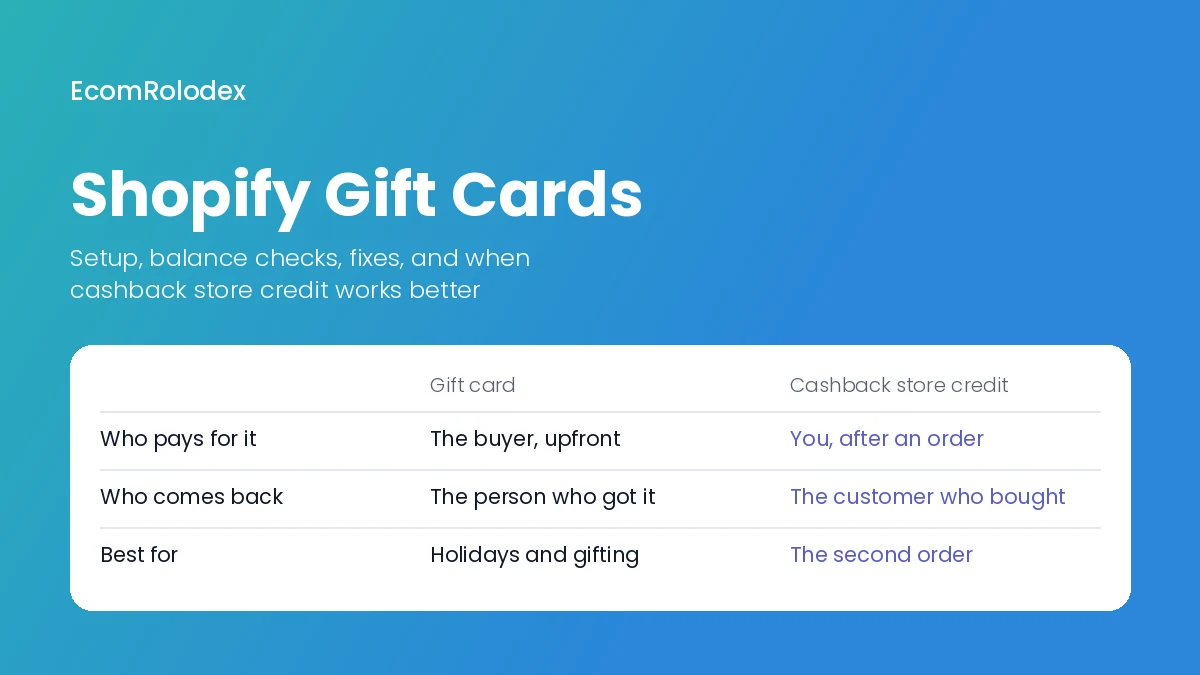
Gift cards are great for one thing: getting someone new into your store, paid for by someone else. They do very little to bring back the person who just bought from you. That's a different job, and Shopify has a different tool for it: store credit.
| Gift card | Store credit | Cashback (as store credit) | |
|---|---|---|---|
| How it's used | A code anyone can type | Linked to the customer's account | Linked to the customer's account |
| Can it be passed on? | Yes | No | No |
| Who pays | The buyer, upfront | You (refunds, goodwill) | You, but only when the customer orders again |
| Main job | New customers through gifting | Keep money in your store instead of refunding | Get the second order |
| What the customer needs | The code | To log in at checkout | To log in at checkout |
| Fee for new stores | Third-party transaction fee on the amount used | Same | Same |
Shopify's native store credit is issued from your admin and shows up at checkout when the customer is logged in. It needs new customer accounts, which you turn on in Settings > Customer accounts. Because it's tied to the account, it can't be shared or resold like a gift card code.
When cashback beats a gift card
Here's the problem we see on most stores we work on: the first order is expensive to get (ads, discounts, influencers) and most customers never place a second one. A gift card doesn't fix that. The person who already bought has no reason to come back.
Cashback does. The customer orders, gets a part of what they paid back as store credit, and their next order is already partly paid for. Compared with a discount code, it doesn't cut the price of the first order, and it only costs you something when the customer actually returns.
Rewards change what customers do. On Gold Star Fragrances we added tiered cart rewards (free shipping over $50, a free gift at $100 and 5% off over $150), and the average order value went up 30% in the first 30 days. Cashback works on the same idea, but for the next order instead of the current one.
That's why we built Comeback, our Shopify app that gives customers cashback as native Shopify store credit after they buy. It's coming soon to the Shopify App Store. If you want to try it on your store when it launches, book a call and tell me about your repeat purchase rate.
Use both: a gift card for the holidays and gifting, and cashback for everything after the first order.
How to sell more gift cards on Shopify
These are the changes we recommend to our clients before gifting season:
- Put "Gift Cards" in the main menu from mid November to the end of December, and again before Mother's Day and Father's Day.
- Sell the last-minute gift. From December 20, gift cards are the only gift that still arrives on time. Say "delivered by email in minutes" on the product page, in the announcement bar and in your emails.
- Use the scheduled send date. "Buy now, we'll email it on the day" removes the worry of buying early.
- Offer a bonus card. "Buy a $100 gift card, get a $20 card for yourself" works well, and you can issue the bonus cards from the admin in January, so they bring the buyer back after the holidays.
- Make the product page look like a gift. A branded card image, 4 or 5 clear amounts, and one sentence on how it works beat a plain default product.
- Send a gift card email. One email in early December and a last-chance email around December 20. If you need an email tool, Omnisend has a free plan, and you get 30% off the monthly plans through our link.
- Follow up after redemption. The person who used a gift card is a new customer. Treat them like one, with a welcome flow and a reason to order again (this is where cashback helps).
Not sure what else your store is missing? Our free Shopify Store Analyzer looks at how your store is built and gives you 20+ tips to sell more, from speed to trust badges to your product pages.
Moving to Shopify with open gift card balances?
If you're coming from WooCommerce, SunShop or another platform, put open gift card balances on your migration list. When we moved Gold Star Fragrances from SunShop to Shopify, the gift card page was one of the pages we built from scratch, next to About, Contact and FAQ. We also moved Futureface from WooCommerce. Export every card with its code and current balance from the old store, import them as Shopify gift cards with the same codes, and test a few before launch. Customers shouldn't lose money because you changed platforms. Our WooCommerce to Shopify guide covers the rest of the move.
Frequently asked questions
Are Shopify gift cards available on every plan?
Yes. Shopify says gift cards are available on all subscription plans. Some older guides say the Basic plan can't use them, but that changed years ago.
Do Shopify gift cards expire?
Not by default. You can turn on expiry in Settings > Payments, and if you do, the default is five years. Many places don't allow gift cards to expire, so check the rules where you sell first.
Can a customer use multiple gift cards on one order?
Yes. A customer can apply more than one gift card, and pay any amount left with another payment method.
How do I check my Shopify gift card balance online?
Open the gift card email from the store and click the link to the gift card page. It shows the balance left. If you lost the email, contact the store that sold the card; they can look it up and send it again.
Can I use a Shopify gift card on another Shopify store?
No. A Shopify gift card only works in the store that issued it.
Can I choose my own gift card code?
Yes, for cards you issue from the admin you can keep the code Shopify generates or type your own. Codes for cards that customers buy are generated by Shopify.
Can a customer pick their own gift card amount?
Not on a gift card product. They choose one of your denominations. For a custom amount, send an invoice and issue a gift card once it's paid.
What's the difference between a gift card and store credit on Shopify?
A gift card is a code anyone can use, usually bought by one person for another. Store credit is linked to one customer's account and used when they log in at checkout. Gift cards bring in new people. Store credit, especially as cashback, brings back your existing customers.
Want more customers to come back?
Send me your store link. I'll look at your gift cards, your product pages and your repeat orders, and tell you what to change first.