




Moving from Squarespace to Shopify looks easy on paper. Squarespace exports your products and customers as CSV files, and Shopify imports CSV files. The trouble is what the export leaves out: no product images, no reviews, and your blog only comes out as a WordPress file that Shopify can't read.
I'm Nick Ursu. I've worked only on Shopify for 9+ years, with 1,300+ Shopify projects since 2017, and store moves are a big part of that work. This guide is the order we follow on every move, with the real hours from our own projects. Shopify's guide tells you which buttons to press. This one tells you what breaks, how long each part takes and where store owners lose their Google traffic.
One honest note before we start: the client examples below come from our WooCommerce, WordPress and SunShop moves. The Squarespace parts (what the export gives you, the domain step) come from Shopify's own Squarespace guide. Everything after the export is the same work on every platform.
Bonus: want a plan for your own store instead of a general guide? Ask for our free migration plan and we'll look at your store and tell you what moves, what needs rebuilding and roughly how many hours it takes.
Quick overview
- What Squarespace exports: products (up to 10,000 physical and service products), customers (your contacts) and orders, all as CSV files.
- What it doesn't: product images, reviews, your design, and blog posts and pages (only as a WordPress .xml file Shopify can't import).
- The step people skip: redirects. Every old Squarespace link needs to point to its new Shopify page, or Google sends people to an error page.
- Your domain: you keep it. Point it to Shopify first, move it later if you want.
- Time: a small store is about 30 hours of work, a standard one about 80. Our Futureface move took 3 weeks.
- Cost: do it yourself for the price of your Shopify plan and a couple of apps, or hire us from $1,350.
Rather talk first? Book a call with me or message me on WhatsApp.
What moves from Squarespace to Shopify (and what doesn't)
Here's the full list, based on Shopify's own Squarespace migration guide and what we see on every move.
| What | How it moves | Watch out for |
|---|---|---|
| Products | CSV export, then Shopify's product import | No featured images, variant images or alt text in the file |
| Categories | Come in as one Product Type | Collections need to be built again in Shopify |
| Customers | Contacts CSV, edited to Shopify's template | No notes, no saved addresses (only the last physical order's address), no passwords |
| Orders | Orders CSV export | Shopify has no direct import, you need an app |
| Reviews | Can't be exported | Copy them into a review app by hand |
| Blog posts and pages | Only as a WordPress .xml file | Shopify can't import it, copy them over |
| Design | Doesn't move | Rebuilt in a Shopify theme |
| Domain | Stays yours | Connect it with 2 DNS records, transfer later if you want |
So the data part is maybe a third of the work. The rest is rebuilding what doesn't export and making sure every old link still lands somewhere.
Before you start: the sheet we make on every move
Before we touch a single product, we make one devsheet. Every page, product, collection and blog post on the old site gets a row, with its old link and its new Shopify link next to it. That one sheet becomes the task list, the redirect list and the launch checklist.
- Your top pages from Google. In Google Search Console, open Performance and the Pages tab for the last 3 months. These get rebuilt with care and redirected first.
- Products and variants. Count both. Variants (sizes, colors, bundles) drive the hours far more than the product count.
- Everything Squarespace does for you. Member areas, scheduling, forms, donations, subscriptions. None of these move, and each one needs a Shopify app or custom work.
- Backups. Download the products, contacts and orders files, and the blog export, before you cancel anything.
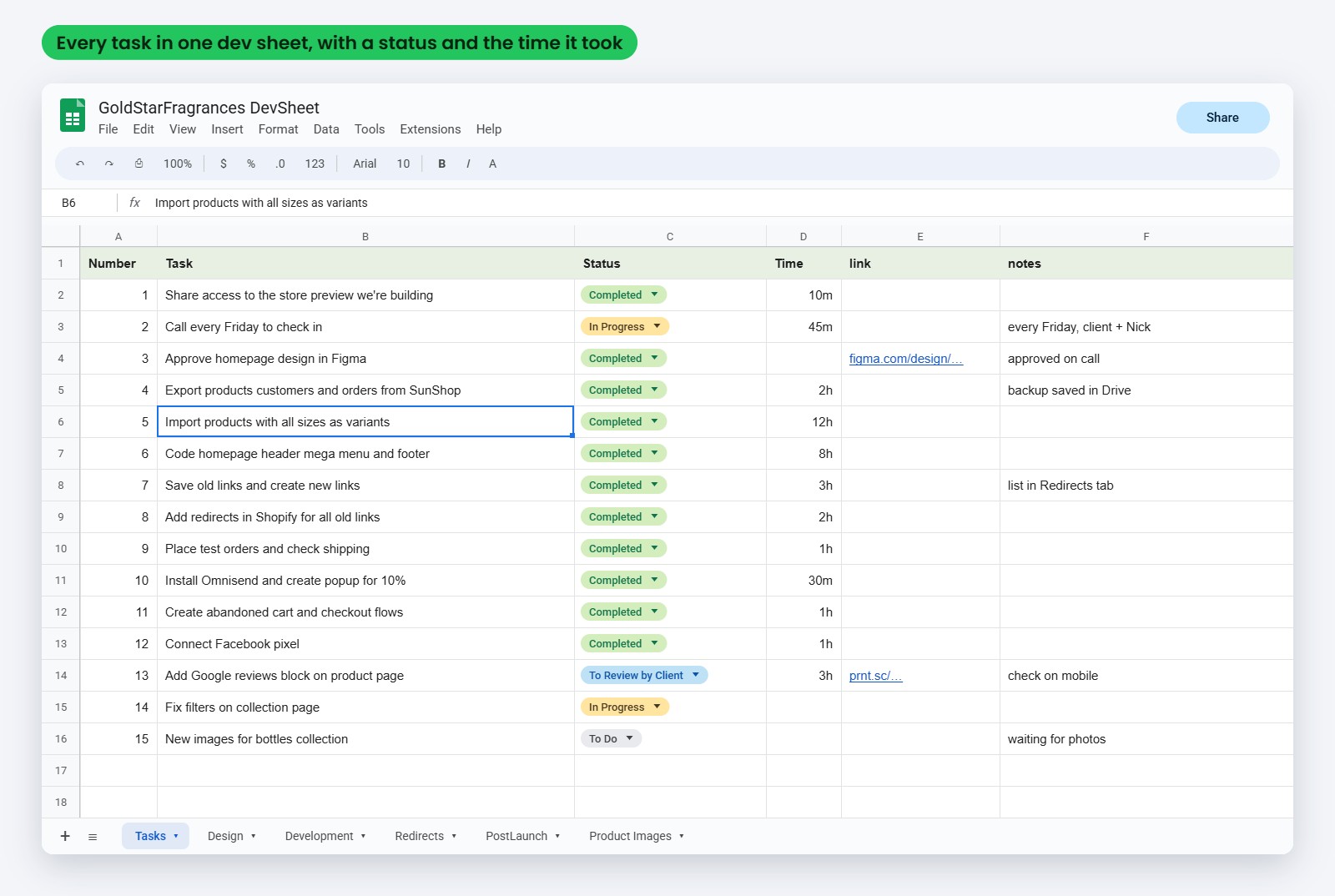
Part of the GoldStar devsheet: every migration task with its status and the time it took
From our projects: one sheet, two links per row
When we moved Futureface, a Canadian skin nutrition brand, from WooCommerce to Shopify, the devsheet had 31 tasks. Every page task had two links next to it: the old page on futureface.ca and the new one on the Shopify preview. Each page went to Matt to review on the preview before launch.
The same two columns turned into the redirect list: 20 old links, 11 pages, 4 products, 3 blog posts, the blog and the shop page. The whole move took 3 weeks and 80 hours, and the store had sales on launch day. Read the Futureface case study.
How to move from Squarespace to Shopify, step by step
Step 1: Open your Shopify store and pick a theme
Start the Shopify store first and build it on the free myshopify.com address while your Squarespace site stays live. Nothing changes for your customers until the domain step at the end.
Pick a theme that's already close to the layout you want. Every section you don't have to code is time and money saved. On our projects I design the main pages in Figma first, the owner approves them, and then we build. Changes get tested on a copy of the theme, never on the live one.
Step 2: Export your products from Squarespace
In Squarespace, open Products & Services, then Products, and click Export all. You get a file called SquarespaceProductDownload.csv. Shopify's guide says it covers up to 10,000 physical and service products, so if you sell digital downloads, plan to add those by hand.
Open the file and you'll see the gap right away: no images. Before you cancel Squarespace, copy your image links or download the images, because the live site is where they still are.
Step 3: Turn the Squarespace file into a Shopify file
Shopify won't take the Squarespace file as it is. Download Shopify's product CSV template and move your data into its columns:
- One row per variant, with the product URL (the handle) copied into every variant row. Shopify's guide calls this out, and it's the most common reason an import turns one product into five.
- Sizes and colors go into the option columns (Option1, Option2).
- Squarespace categories become the Product Type.
- Images: add a public image link in the Image Src column, or upload the images after the import.
Then in Shopify go to Products, Import, and untick "Publish new products to all sales channels" so nothing shows up half done.
From our projects: where the hours really go
On GoldStar Fragrances' move from SunShop, exporting products, customers and orders took 2 hours. Importing the products with all their sizes as variants took about 12 hours, more than coding the homepage header, mega menu and footer together (8 hours).
Perfume oils come in several sizes, and each size needs its own price, weight and stock. If your products have options, budget your time here, whatever platform you're leaving.
Step 4: Check every product after the import
Open the products one by one, or at least your top sellers and a random 10. Check the price and compare-at price, each variant, the weight (shipping rates depend on it), stock, images, alt text, and the SEO title and description. A wrong weight is the one that hurts quietly: checkout shows the wrong shipping and nobody tells you, they just leave.
Step 5: Rebuild your collections
Your Squarespace categories arrive as the Product Type. In Shopify, create an automated collection for each one with the condition "Product type is equal to", or use tags if a product sits in more than one collection. Add a short text at the top of each collection. Those pages often bring Google traffic, and an empty collection page ranks worse than the old category did.
Step 6: Move your customers
In Squarespace, go to Contacts and use Export all contacts. The file is SquarespaceCustomerDownload.csv. Shopify's guide is clear that you have to edit it to match Shopify's customer template before it imports. It also says the export has no contact notes and no saved addresses, only the address from each customer's last physical order.
Passwords never move between platforms. Customers who had an account set a new password on Shopify. Only mark people as email subscribers if they agreed to get emails on Squarespace.
Step 7: Bring back your reviews
Squarespace reviews can't be exported, so this one is manual. Shopify suggests review apps like Judge.me, Loox or Yotpo. Copy each review (name, stars, date, text, product) into the app's import file and upload it. On the Futureface move, moving the reviews into Judge.me was its own task in the sheet, done before the new product pages went to Matt for review.
Step 8: Order history (optional)
In Squarespace, go to Orders, Export data, Download CSV. Shopify doesn't import this file directly and points to third party apps such as EZ Importer. For most small stores I'd keep the file as a backup and skip the import. Import it if your customers log in to see past orders or reorder often.
Step 9: Blog posts and pages
Squarespace exports the blog and pages only as a WordPress .xml file, and Shopify can't read it. So you copy them over. Keep the same titles and the same slug at the end of each link, and upload the images again. Your about, FAQ, shipping and contact pages go into Shopify pages. Refund, privacy and terms policies have their own place in Shopify's settings.
If your blog brings real Google traffic, treat each post like a product: same text, same slug, a redirect, and a check after launch.
Step 10: Shipping, taxes, payments, then test orders
Set up your shipping zones and rates, taxes and Shopify Payments, then place real test orders. On GoldStar this was its own task in the sheet ("Place test orders and check shipping", 1 hour). On Futureface, a Canadian store, the currency settings got their own task too. Test on a phone too, not just on your laptop.
This is also the moment to set up your emails, because Squarespace's email tools don't come with you. On GoldStar the welcome popup with 10% took 30 minutes and the abandoned cart and checkout flows about an hour, both in Omnisend.
Step 11: Redirect every old Squarespace link
This is the step that keeps your Google traffic. Squarespace and Shopify use different link patterns:
| Squarespace link | Shopify link |
|---|---|
| /shop/p/linen-apron | /products/linen-apron |
| /shop | /collections/all |
| /blog/my-first-post | /blogs/news/my-first-post |
| /about | /pages/about |
The "shop" and "blog" parts are whatever you named those pages in Squarespace, so check your own links. The /p/ is how Squarespace 7.1 builds product links. In Shopify, add each redirect in Content, Menus, URL Redirects, or import them all at once with a CSV file (one column for the old link, one for the new).
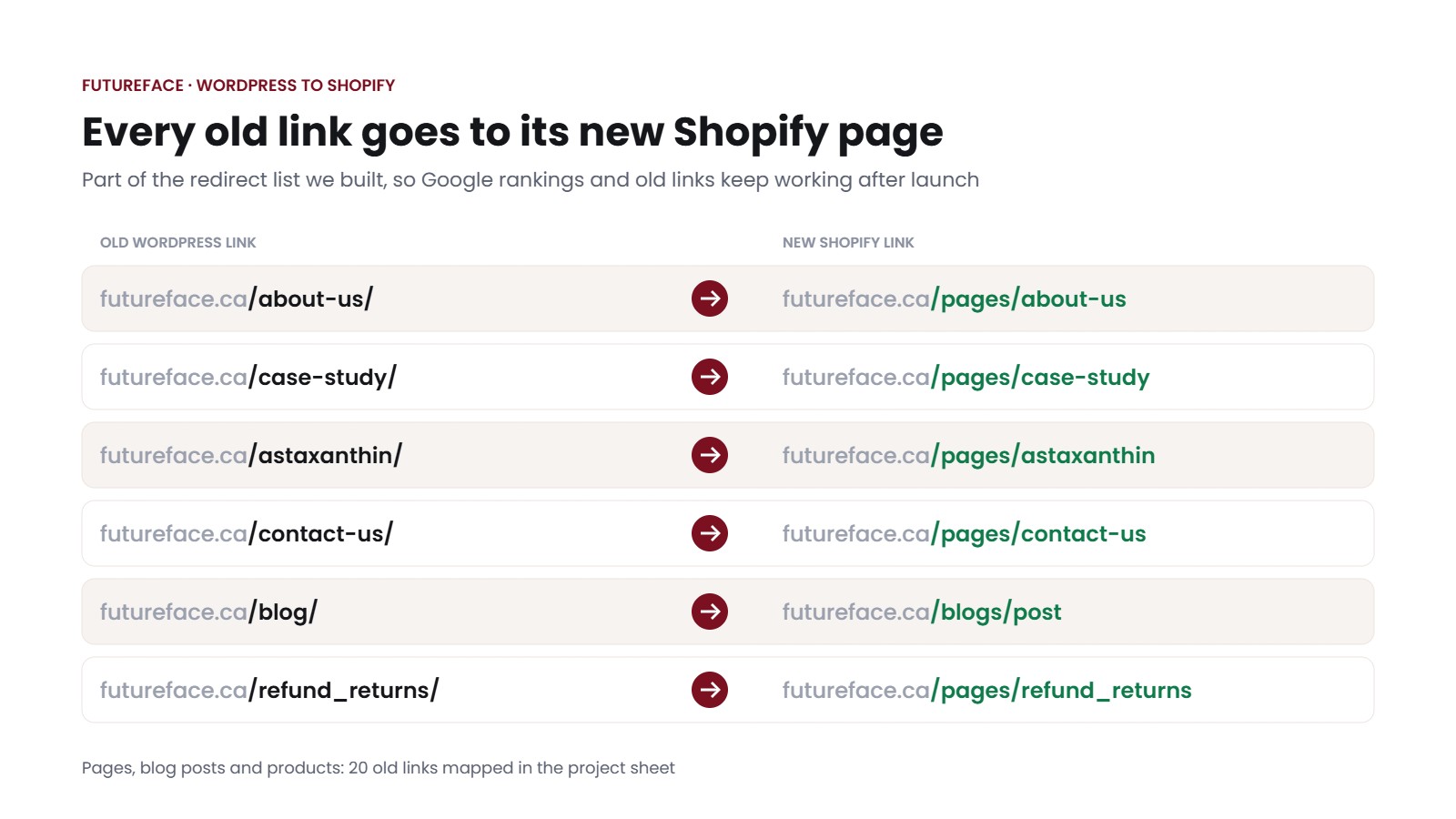
Futureface: part of the redirect list, 20 old links mapped to their new Shopify pages
From our projects: the link you can't guess
On Futureface, one blog post's old link ended in "astaxanthins". When the post was created in Shopify, the apostrophe in "astaxanthin's" turned into a dash, so the new link ended in "astaxanthin-s". A rule like "same slug, new folder" would have sent that post to an error page.
That's why we copy the real new link from Shopify into the sheet instead of guessing it. On GoldStar, saving the old links and creating the new ones took 3 hours, and adding the redirects in Shopify took 2. After launch, paste every old link into a browser and check where it lands. Products first.
Step 12: Point your domain to Shopify
You can keep your domain registered with Squarespace and just point it to Shopify. That's what I'd do on launch day, and move the registration later if you want to. Shopify's help page for connecting a Squarespace domain has the full steps. In short:
- In Squarespace, open Domains, choose your domain and click DNS.
- If your email runs on this domain (Google Workspace, Outlook), keep its MX and TXT records. Remove only the old records that point the website to Squarespace.
- Add an A record: host @, value 23.227.38.65.
- Add a CNAME record: host www, value shops.myshopify.com.
- In Shopify, go to Settings, Domains, Connect existing, and enter your domain. If Shopify asks for a TXT record to verify it, add that too.
Shopify says it can take up to 48 hours to be fully live. If you want to move the registration away from Squarespace later, check the date first: domains are usually locked for 60 days after they're registered or transferred.
Step 13: Launch day and the first 30 days
Set the domain as primary, remove the store password, and submit your sitemap (yourdomain.com/sitemap.xml) in Google Search Console. Then watch two things for a month: pages Google reports as not found, and your top pages from the sheet. Any old link that shows up as an error gets a redirect the same day.
Don't cancel Squarespace on launch day. Keep it until every redirect is checked and you have the orders file and invoices saved. On our moves we stay on after launch too: Futureface got 90 days of support with video instructions.
Mistakes to avoid
- Deleting every DNS record. Shopify's steps say to clear the old records. If you delete the email ones too, your inbox stops getting mail.
- Cancelling Squarespace too early. Your images and order history are still there. Once the account is gone, so are they.
- Launching without redirects. Every page Google knew becomes an error page, and the rankings go with it.
- Changing product links "while you're at it". Keep the same slug after /products/. A cleaner link isn't worth losing the page's history.
- Rebuilding every Squarespace feature one to one. Start with what sells: products, cart, checkout, emails. Add the extras after launch.
- Publishing products straight from the import. Half done pages go live, and people see them.
How long it takes and what it costs
Most of the time goes into variants, design and links, not the data. These are our 3 migration packages, next to the real move closest to each one:
| Package | Hours and price | Closest real move |
|---|---|---|
| Small | 30 hours at $45/h = $1,350 | Scanmarker, WordPress to Shopify, about 35 hours |
| Standard | 80 hours at $35/h = $2,800 | Futureface, WooCommerce to Shopify, 80 hours in 3 weeks |
| Large | 150 hours at $30/h = $4,500 | GoldStar was bigger: about 200 hours over about 6 weeks, with a new design |
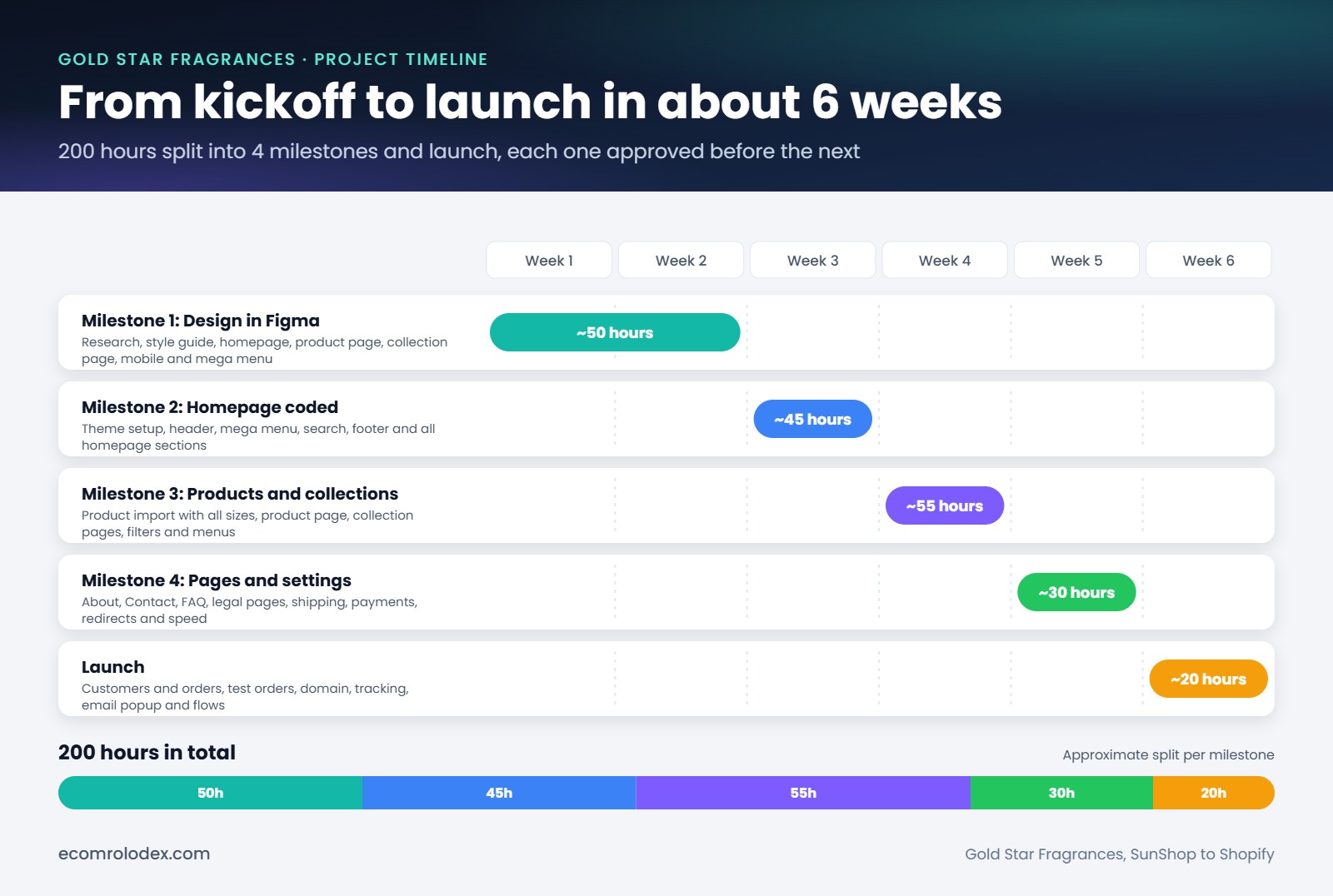
GoldStar: design about 50 hours, homepage about 45, products and collections about 55, pages and settings about 30, launch about 20
Doing it yourself costs your Shopify plan, a review app, an order import app if you want your order history, and your time. You can see how each of our moves added up in what a Shopify migration costs, and what's in each package on our Shopify migration service page.
Not sure which package your store needs?
Send me your Squarespace link on a quick call. I'll tell you what moves, what needs rebuilding and roughly how many hours it is.
Should you do it yourself or hire someone?
Do it yourself if you have a small catalog with simple variants, a few pages, no blog that brings traffic and not much coming from Google. The two CSV files, a free theme and a redirect list will get you there in a few weekends.
Get help if you have hundreds of products with sizes or colors, a blog people find on Google, customer accounts or subscriptions, or traffic you can't afford to lose for a month. That's the work we do. GoldStar's orders went from 10 a day to 30-50 within a year of the move, and conversion went from about 1% to 4-5%. The full story is in our SunShop to Shopify case study, and if you're comparing platforms, our Wix to Shopify guide follows the same steps.

Ben from Gold Star Fragrances: "They completely transformed my website."
Want the plan for your own store before you decide? Ask for the free migration plan.
Frequently asked questions
Can I move from Squarespace to Shopify for free?
Mostly, yes. The Squarespace exports are free and so is Shopify's CSV import. You pay for your Shopify plan, and maybe a review app and an order import app. The real cost is your time, mostly on variants, images and redirects.
How do I transfer my domain from Squarespace to Shopify?
You don't have to transfer it to use it. Point it to Shopify with an A record (23.227.38.65) and a www CNAME record (shops.myshopify.com), then connect it in Shopify under Settings, Domains. Moving the registration itself can wait, and domains are usually locked for 60 days after a registration or a transfer.
Will I lose my Google rankings?
Not if every old link redirects to the matching new page and the content stays the same. Expect some movement in the first weeks. Rankings drop for real when old links go to error pages or when the text on the main pages gets cut.
Do customer passwords move from Squarespace to Shopify?
No. Passwords never move between platforms. Your customers' details move with the contacts file, and anyone with an account sets a new password on Shopify.
Can I move my Squarespace blog to Shopify?
Yes, but by hand. Squarespace only exports the blog as a WordPress .xml file, which Shopify can't import. Copy each post into Shopify's blog, keep the same slug, upload the images and add a redirect from the old link.
How long does a Squarespace to Shopify migration take?
About 30 hours of work for a small store and about 80 for a standard one. In calendar time, our Futureface move took 3 weeks and GoldStar, with a full new design, about 6 weeks.
Can I keep Squarespace and sell with Shopify?
Yes. Shopify's Buy Button lets you add Shopify products to a Squarespace page. It works for a few products. If the store is the main business, a full Shopify store is easier to grow.

Ready to move your store to Shopify?
Me and my team move it for you: products, customers, reviews, redirects and your domain, with the design rebuilt in a Shopify theme.
Not ready for a call? Get the free migration plan for your store first.